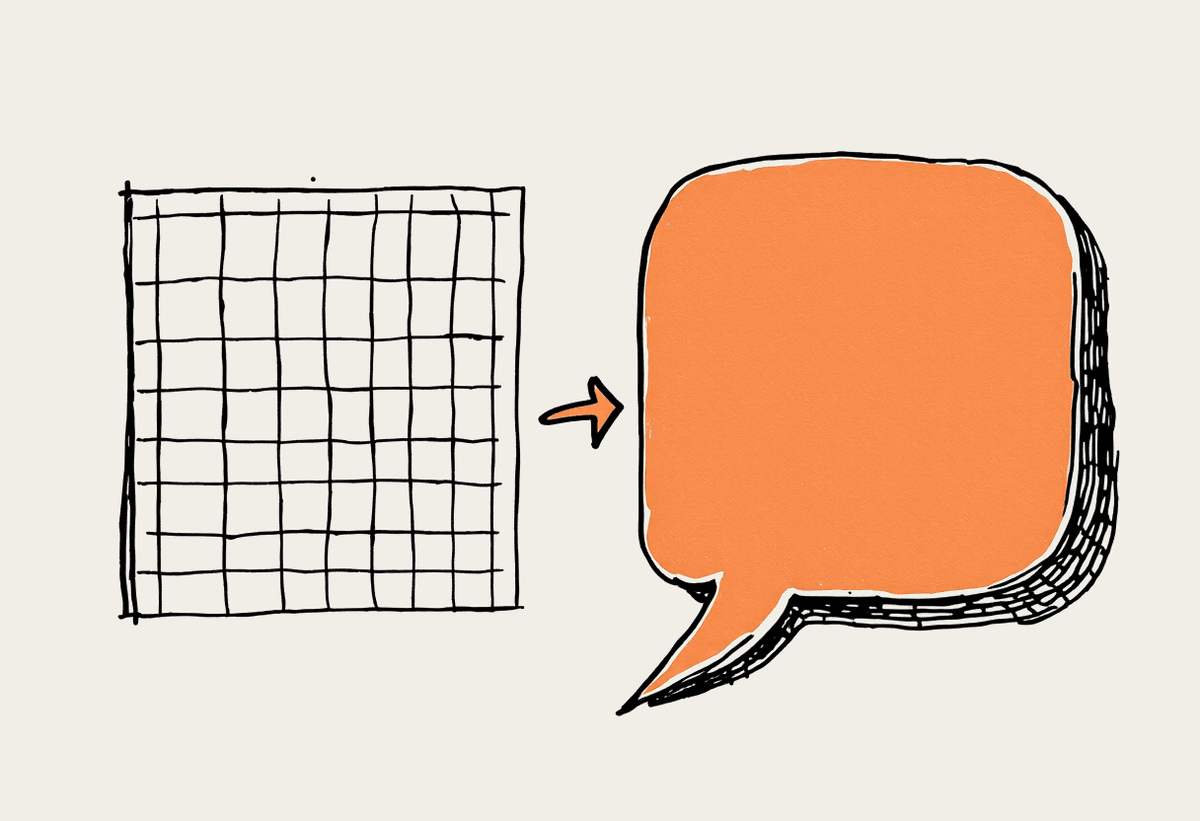
Microsoft made the ChatGPT sidebar in Excel generally available in June 2026, and for small teams the headline matches the reality. You can ask a spreadsheet to clean a column, summarise a sheet, or write a formula in plain words, without typing the formula yourself. For an Australian small business running on a couple of laptops and a shared drive, that lowers the bar to getting real work out of a spreadsheet. This guide covers what the sidebar does, how to turn it on, the no-formula workflows that actually save time, and the data you should keep well away from it.
What the ChatGPT sidebar does in Excel
The sidebar sits to the right of your worksheet and reads the cells you point it at. You describe what you want in everyday language, and it either answers in the panel or writes values and formulas back into the grid. Think of it as a junior analyst who can see the sheet you have open. It is good at repetitive cleanup, explaining what a tab is doing, and turning a messy export into something tidy. It is not a replacement for understanding your own numbers, and it will occasionally get a formula wrong, so you still review what it produces before you trust it.
Turning on ChatGPT in Excel
You need a current Microsoft 365 subscription and a ChatGPT account your plan allows to connect. Setup takes about ten minutes the first time, and you only do it once per device.
Open Excel on the desktop or web and update to the current version, since the sidebar shipped in the June 2026 release.
On the Home tab, find the ChatGPT or Copilot panel icon on the right, and sign in with the account your business uses.
Approve the connection when prompted, and pick a test workbook that holds no sensitive customer data.
Type a simple request such as clean up column C, and check what it writes back before you save the file.
If your organisation manages Microsoft 365 centrally, an admin may need to switch the connector on first. A quick message to whoever handles your IT usually clears that within a day.
Five no-formula workflows worth your time
These are the jobs where asking in plain words beats hunting for the right function. Each one is something a Sydney cafe owner, a trades business, or a two-person agency can put to use this week.
Clean a customer export: paste a file from your booking tool and ask the sidebar to split full names into first and last, fix inconsistent capitals, and flag duplicate email addresses.
Summarise a sales tab: ask for the top five products by revenue and a one-line read on the month, so you walk into a meeting already knowing the story.
Build a formula by description: say add a column that works out GST at ten per cent, and the sidebar writes the formula, which you then sanity check against one row.
Categorise free text: hand it a column of expense notes and ask it to tag each as travel, software, or supplies, ready for your bookkeeper.
Draft a reconciliation note: ask it to compare two columns of figures and list the rows that do not match, so you know exactly what to chase.
None of these need you to remember VLOOKUP or wrestle with nested IF statements. You describe the outcome, you review the result, and you keep moving. Over a month, the saved minutes add up to a real chunk of an afternoon you get back.
What to keep out of the sidebar
The sidebar sends the cells it reads to a model outside your spreadsheet, so treat it like any other cloud tool under the Privacy Act. Do not paste customer financial details, health information, or anything you would not email to an outside contractor. A safe habit for an Australian small business is to work on a copy with names and account numbers stripped out, then apply the cleaned logic to the real sheet yourself.
Keep tax file numbers, bank details, and full customer records out of any prompt.
Use a de-identified copy whenever you are unsure about a dataset.
Give your team one rule: if you would not post it publicly, do not paste it in.
Where Claude fits, and when to get help
ChatGPT in Excel is a fine place to start, and for plenty of small businesses it is enough on its own. Where Australian teams tend to ask us for more is when the spreadsheet work becomes a recurring process rather than a one-off: the same month-end cleanup, the same reporting pack, the same data moving between tools every week. That is the point where a built workflow beats a sidebar, and where we usually reach for Claude, because it holds longer context and connects to the rest of your stack more cleanly. A small automation of that kind typically runs between $15,000 and $40,000 to build and takes weeks rather than months.
If you want a hand deciding whether the sidebar is enough or whether a job is worth automating properly, book a short brainstorm and we will talk it through.