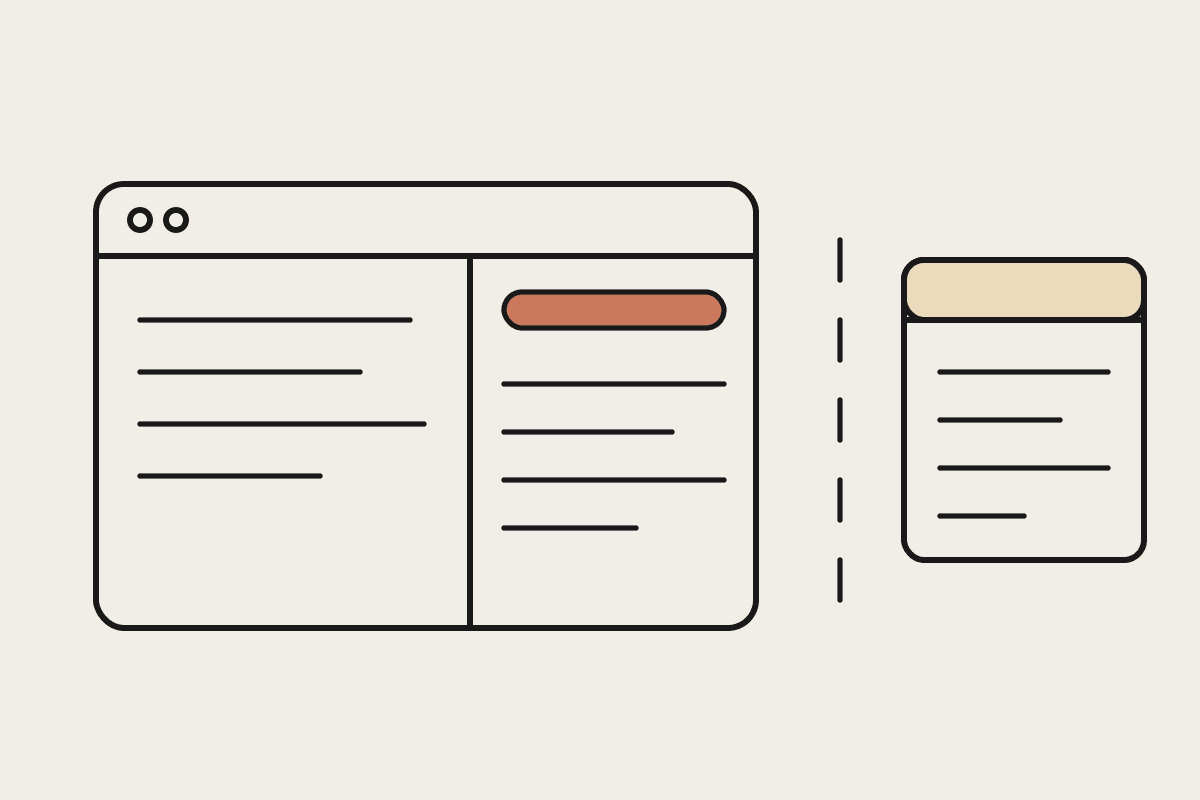
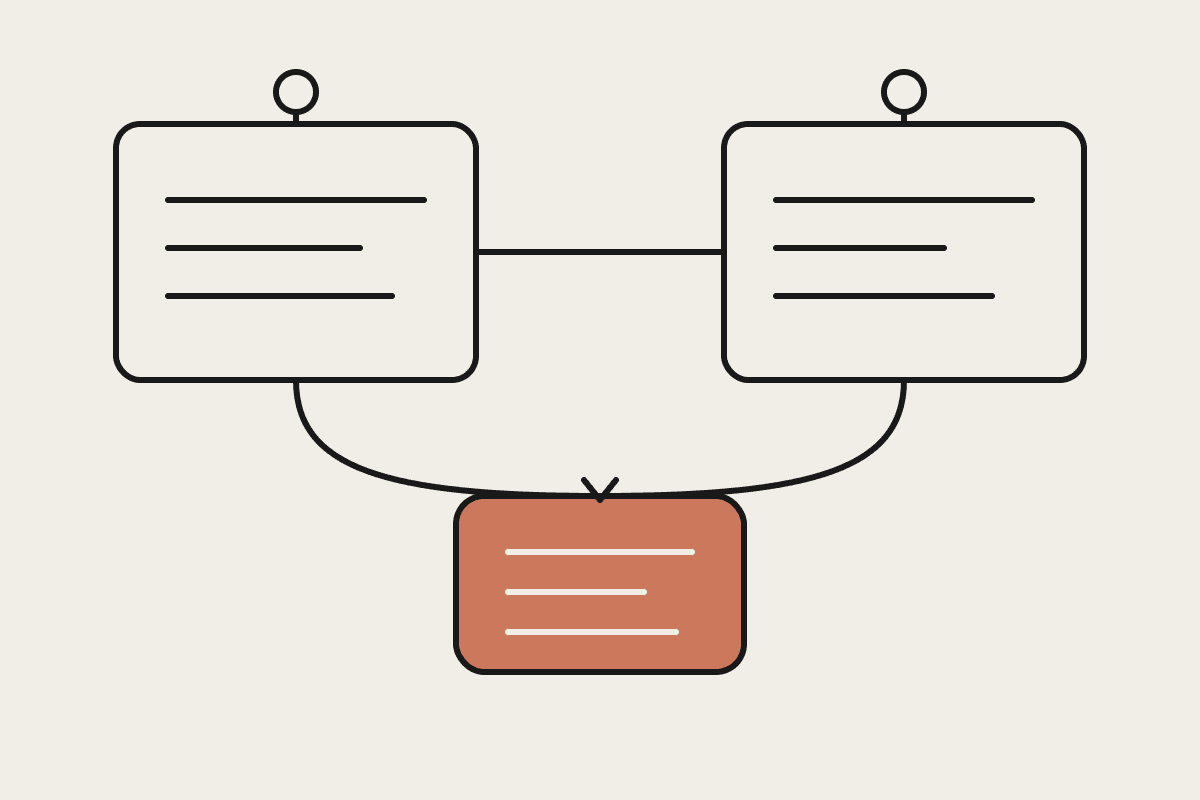
ChatGPT Workspace Agents are now generally available, and the headline is simple: ChatGPT can read from and act inside the tools your team already uses. Instead of copying text into a chat window, you point an agent at Slack, Google Drive, Microsoft 365, Salesforce, or Notion, and it works with that material directly. For Australian teams that have been curious but cautious, this is the first version that feels ready for real work.
This guide covers what Workspace Agents actually do, what you can connect, how to set them up without creating a security headache, and the Privacy Act questions worth answering before you switch anything on. It is written for the person who has to make it work on a Tuesday, not for a conference stage.
What a Workspace Agent actually is
A Workspace Agent is a configured version of ChatGPT that has permission to reach into a connected system, fetch the relevant records, and complete a task across them. Ask it to recap the last fortnight of a Slack channel, pull the matching deal notes from Salesforce, and draft a status update in Notion, and it can do all three in one pass. The agent only sees what you connect and what the signed-in person already has access to, so it inherits your existing permissions rather than inventing new ones.
The practical shift is that the work moves to where your data lives. Your people stop being the couriers carrying text between apps. That sounds small until you count how many times a day your team does it.
What you can connect
At general availability, ChatGPT Workspace Agents support a core set of business connectors. The five most Australian teams will reach for first:
Slack: read channel history and threads, recap discussions, and draft replies for a person to review.
Google Drive: search and reference documents, sheets, and slides without uploading them by hand.
Microsoft 365: work across Outlook, Word, Excel, and SharePoint content the same way.
Salesforce: pull account and opportunity records so answers are grounded in your live pipeline.
Notion: read pages and databases, and draft new entries from what it finds elsewhere.
More connectors are arriving, but these five cover the majority of day-to-day requests. If your team lives in one or two of them, you already have enough to get value.
Setting it up, step by step
Setup runs through your ChatGPT workspace admin settings. You will need an admin on the ChatGPT Business or Enterprise plan, because connectors are not available on individual accounts. This order keeps things tidy:
Confirm your plan. Workspace Agents require ChatGPT Business or Enterprise. Check who in your organisation holds the admin role before you start.
Enable connectors at the workspace level. An admin turns on each connector and approves the access scopes. Switch on only the systems you actually need.
Decide who gets access. Scope each connector to the right groups rather than the whole company, especially for Salesforce and Drive.
Build a first agent around one job. Pick a single repeatable task, such as a weekly account summary, and configure the agent for that before you generalise.
Test with a real example and a real reviewer. Run it on last week's actual work and have the responsible person check the output before anyone relies on it.
Resist the urge to connect everything on day one. A narrow first agent that does one job well builds more trust than a broad one that occasionally gets things wrong.
What Australian teams should check first
The setup is the easy part. The questions worth slowing down for are about data, and they are the same ones the Privacy Act 1988 would have you ask of any tool that touches personal information.
Data residency: know where prompts and connected content are processed, and whether that satisfies your own commitments to clients.
Access scope: an agent inherits the signed-in user's permissions, so tighten those permissions before you connect, not after.
Record-keeping: decide what the agent is allowed to create or change, and keep a human approval step on anything client-facing.
Vendor terms: confirm whether your workspace content is used for model training, and turn that off if your clients expect it.
None of this is a reason to avoid Workspace Agents. It is a reason to roll them out deliberately. A short written policy covering these four points is usually enough to keep your team and your auditors comfortable.
Where the time actually comes back
The business case is rarely about the licence cost. It is about the hours your team spends moving information between systems. Take a five-person operations team in Sydney that loses an hour each per day to manual lookups, copying, and status updates. At a loaded salary cost, that is in the order of $45,000 a year spent on work a connected agent can do in the background. Even if an agent removes only half of it, the payback is quick.
The teams that get the most from this are not the ones that connect the most tools. They are the ones that pick two or three high-frequency tasks, automate those well, and expand from there.
If you want a hand scoping which tasks to automate first, or setting up Workspace Agents with the right Privacy Act guardrails, that is the work we do every week. Automata AI is a Sydney-based AI automation consultancy, and while we specialise in Claude, we set teams up across the major assistants based on what fits. You can book a free brainstorm and we will map your first agent together.