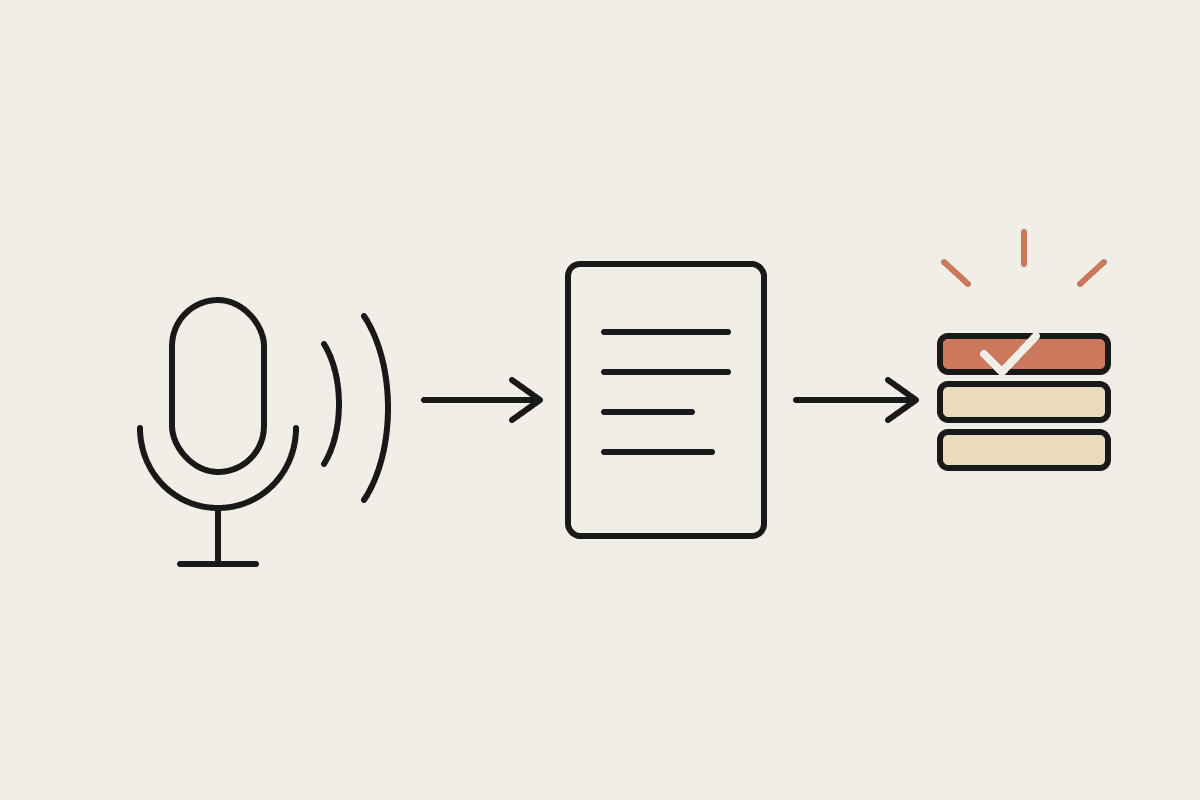
Most small businesses store their working documents in Google Drive and their process knowledge in nobody's head. Claude Cowork's Google Drive connector closes a good part of that gap: it can read, search and draft into Drive folders you already use, so the documents that already exist become something Claude can work from, rather than a separate manual step of finding and pasting content in.
What actually works well
The strongest pattern is grounding Claude's output in documents that already exist rather than asking it to write from scratch. Point it at a folder of past proposals and it can draft a new one that matches your actual structure and pricing conventions, not a generic template. Point it at a shared folder of client meeting notes and it can pull together a summary without anyone re-reading three months of scattered docs.
Where document workflows tend to fall apart
Folder structure that made sense to one person and nobody else, so Claude searches the wrong places just like a new hire would
Multiple versions of the same document with no clear latest one, leading to drafts built on outdated source material
Sensitive documents mixed into general folders without separation, making it harder to scope what a connector should and shouldn't see
No naming convention, so a search for last quarter's report returns twelve loosely related files
A workable structure
Before connecting Claude to Drive, a light restructure pays for itself. A simple top-level split, active clients, templates, internal, archive, with consistent file naming (client name, document type, date) makes the difference between Claude finding the right source document in one search and guessing from a pile of loosely related files. This is a half-day tidy-up, not a project.
A worked example
A Canberra consulting firm connected Cowork to a restructured Drive with a clear templates folder and a client-notes folder per engagement. Drafting a new proposal now starts from the firm's actual last five proposals rather than a blank page, and the partner reported proposal turnaround dropping from roughly four hours to under ninety minutes for a standard engagement, a saving worth close to $30,000 a year across the firm's typical proposal volume once billed-hour opportunity cost is factored in.
Scoping access properly
Connect Cowork to specific folders relevant to the task at hand rather than the entire Drive by default. A scheduled task drafting client proposals doesn't need access to HR files or financial records, and scoping access this way limits what could go wrong if a task is ever misconfigured. Most Google Workspace admin consoles let you share a connector's access at the folder level rather than the whole Drive.
Templates are worth the upfront effort
A folder of three or four genuinely good templates, a standard proposal, a scope-of-work document, a status report, gives Claude something concrete to match rather than inventing structure each time. The upfront effort of picking and cleaning up those templates once is small compared to how much more consistent the output becomes across every document drafted afterwards.
A quick audit you can run today
Search your own Drive for a document you know exists and time how long it takes to find it. If it takes more than thirty seconds, or you find three near-duplicate versions along the way, that's the exact friction that will also slow down anything Claude tries to draft from the same folder.
What this isn't
This isn't a document management system replacement, and it won't fix a genuinely chaotic Drive on its own; the tidy-up still needs a person to do it once. It's also not a substitute for proper access controls on genuinely sensitive material, which should stay restricted regardless of what any connector could technically reach.
Getting started
Spend half a day on folder structure and naming before connecting anything
Scope the connector to specific folders relevant to each task, not the whole Drive
Start with drafting from existing documents rather than from-scratch generation
Archive outdated versions so Claude isn't drafting from stale source material
Most of the value in this setup comes before Claude ever drafts anything: a clean folder structure and a small set of good templates do more for output quality than any amount of prompt refinement. Businesses that skip the tidy-up step and connect straight to a messy Drive tend to get messy first drafts, then blame the tool rather than the source material sitting underneath it. A ten-minute clean-up before the first Cowork session pays for itself many times over across every draft that follows.
If your team's documents are scattered across Drive with no consistent structure, that's the first thing worth fixing before automating anything on top. Get in touch: https://www.automataai.com.au/contact
Keep going
For the full setup path, see the Claude Cowork setup guide. Related on this topic: